 eCommerce
 Memberships
 Chatbot
 Online Courses
 Bookings
 Travel guide
 Events
 Content Creators
 Pickup & Delivery
 Newspaper
 Radio
Radio Schools
 Faith
Faith Organizations
 Restaurant
 Grocery
 Custom apps
 Employee Communication
 NO CODE APP BUILDER
 TECHNOLOGY
 WHY GOODBARBER?
 Design
 PRODUCT RESOURCES
 TOPICS
 MOBILE APPS RESELLERS
 DISCOVER
Connect ChatGPT and Codex to your GoodBarber app
GoodBarber speaks MCP, the open standard for AI assistants. Plug in ChatGPT or OpenAI Codex and run your app in plain language — products, content, members, push.
GoodBarber has its own MCP server. ChatGPT reaches it through the GoodBarber plugin in its directory, and Codex connects to it natively. Set it up once with your GoodBarber account, then drive your app from the assistant you already use.
GoodBarber is in the ChatGPT plugin directory
The GoodBarber plugin is listed in the ChatGPT directory: search for GoodBarber, connect, and manage your app in plain language. No Developer mode needed. The steps are below, along with Codex and the full MCP server connection.
Codex
The OpenAI Codex app is a full MCP client. Add GoodBarber once in its settings and it stays available across your projects.
A GoodBarber app
- An active GoodBarber app
- Admin access to the app you want to connect
The Codex app
- The OpenAI Codex app installed on your computer
- A signed-in OpenAI account
Open MCP servers in Codex
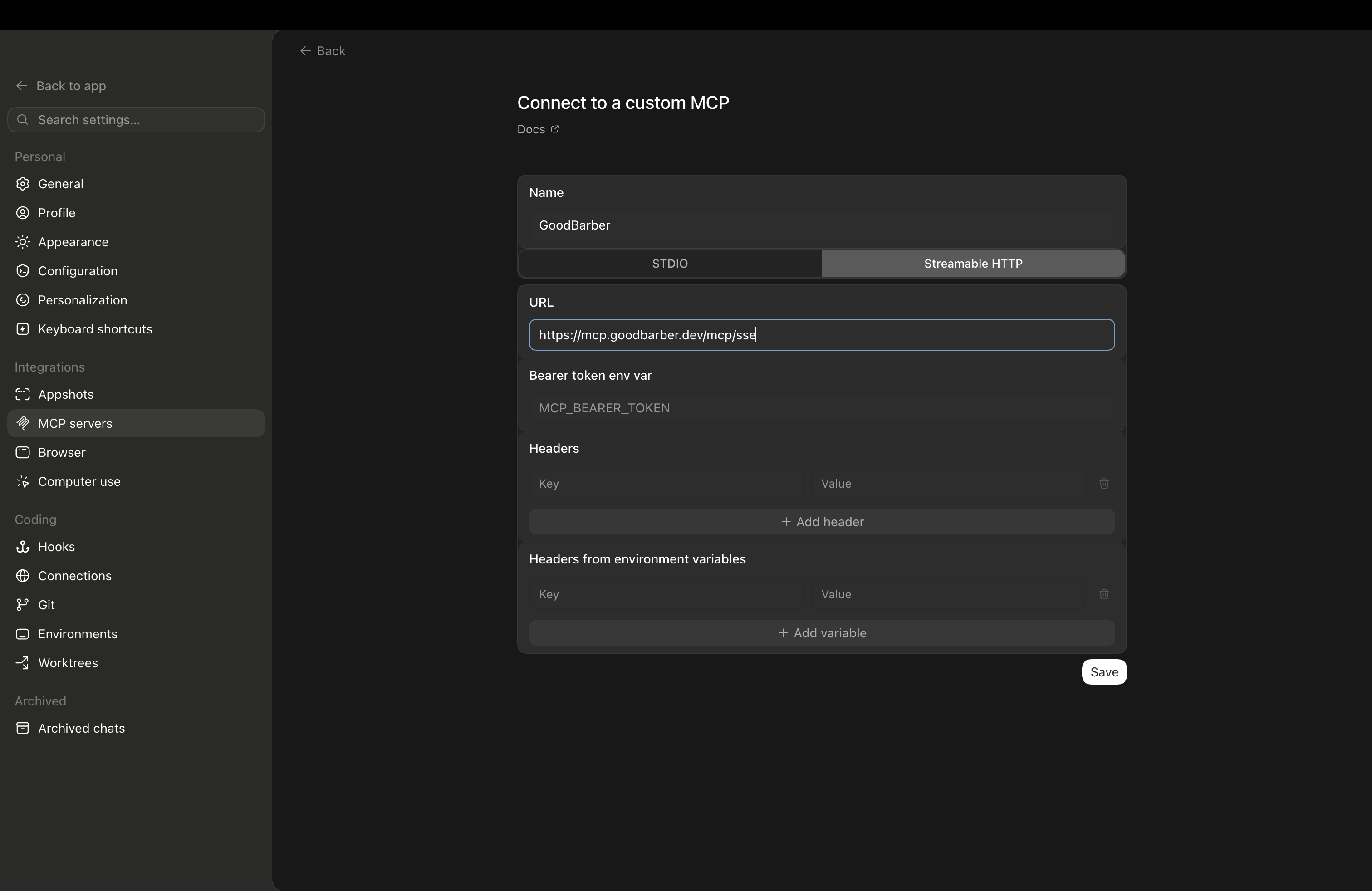
In the Codex app, go to Settings, then Integrations, then MCP servers.
Add a custom MCP
Click Connect to a custom MCP to open the connection form.
Name the connector
Enter GoodBarber in the Name field.
Choose Streamable HTTP
For Transport, select Streamable HTTP (not STDIO).
Paste the server URL
https://mcp.goodbarber.dev/mcp/sseLeave the Bearer token empty
Do not fill in the Bearer token field. Leaving it blank is what triggers the secure sign-in step.
Save
Click Save. Codex opens your browser to authorize the connection.
Authorize GoodBarber
Sign in to GoodBarber and approve access. You are sent back to Codex, connected.
You are connected
GoodBarber's tools are now available in Codex. Ask it to manage your app in plain language.
Using Codex CLI?
Two commands: the first registers the GoodBarber server, the second opens the authorization page where you paste your Public API key.
codex mcp add goodbarber --url https://mcp.goodbarber.dev/mcp/ssecodex mcp login goodbarberChatGPT (desktop & web)
Two methods: install the GoodBarber plugin from the ChatGPT directory, or add the full MCP server as a custom plugin in developer mode.
A GoodBarber app
- An active GoodBarber app
- Admin access to the app you want to connect
A ChatGPT account
- A ChatGPT account. For method B, access to developer mode depends on your account and workspace policies.
- Developer mode enabled, only for the custom plugin method.
Route A: the GoodBarber plugin from the ChatGPT directory
The recommended route for everyone: no Developer mode, and the free plan works.
Find GoodBarber in ChatGPT
In ChatGPT, open the plugin directory and search for GoodBarber, or open its listing directly using the button above.
Connect and sign in
Click Connect. Sign in to GoodBarber with an API key from your back office and approve access. Each key is tied to one app: that is the app ChatGPT will manage.
Ask in any chat
Mention GoodBarber, or just ask: create an article, look up a member, send a push. Write actions ask for your confirmation before they run.
Method B: the full MCP server as a custom plugin
Add the GoodBarber MCP server to ChatGPT by following the steps below. This method requires access to developer mode.
Enable developer mode
In ChatGPT, open Settings, then Security and login. In the Developer mode section, turn on Developer mode.
Add a new plugin
In settings, open Plugins, then click Browse plugins. On the Plugins page, click the + button in the top right to open the New plugin form.
Name the plugin
In the Name field, enter GoodBarber. The icon and description are optional.
Enter the server URL
https://mcp.goodbarber.dev/mcp/sseChoose OAuth
Set authentication to OAuth so ChatGPT signs you in to GoodBarber securely.
Create the plugin and authorize GoodBarber
Read the ChatGPT warning, then select I understand and want to continue and click Create. Follow the steps to sign in to GoodBarber and approve access to your app.
Use GoodBarber in a conversation
Start a new conversation in ChatGPT and add GoodBarber from the tools menu. You can then ask, for example: “List the articles in my app.”
What you can do with it
Plain-language requests; GoodBarber does the work in your app. A few things our team ran while testing:
Content
Create a published article titled Spring Sale announcing 20% off the whole catalog until June 30.
Created and published the article, with the 20% off announcement.
Push notifications
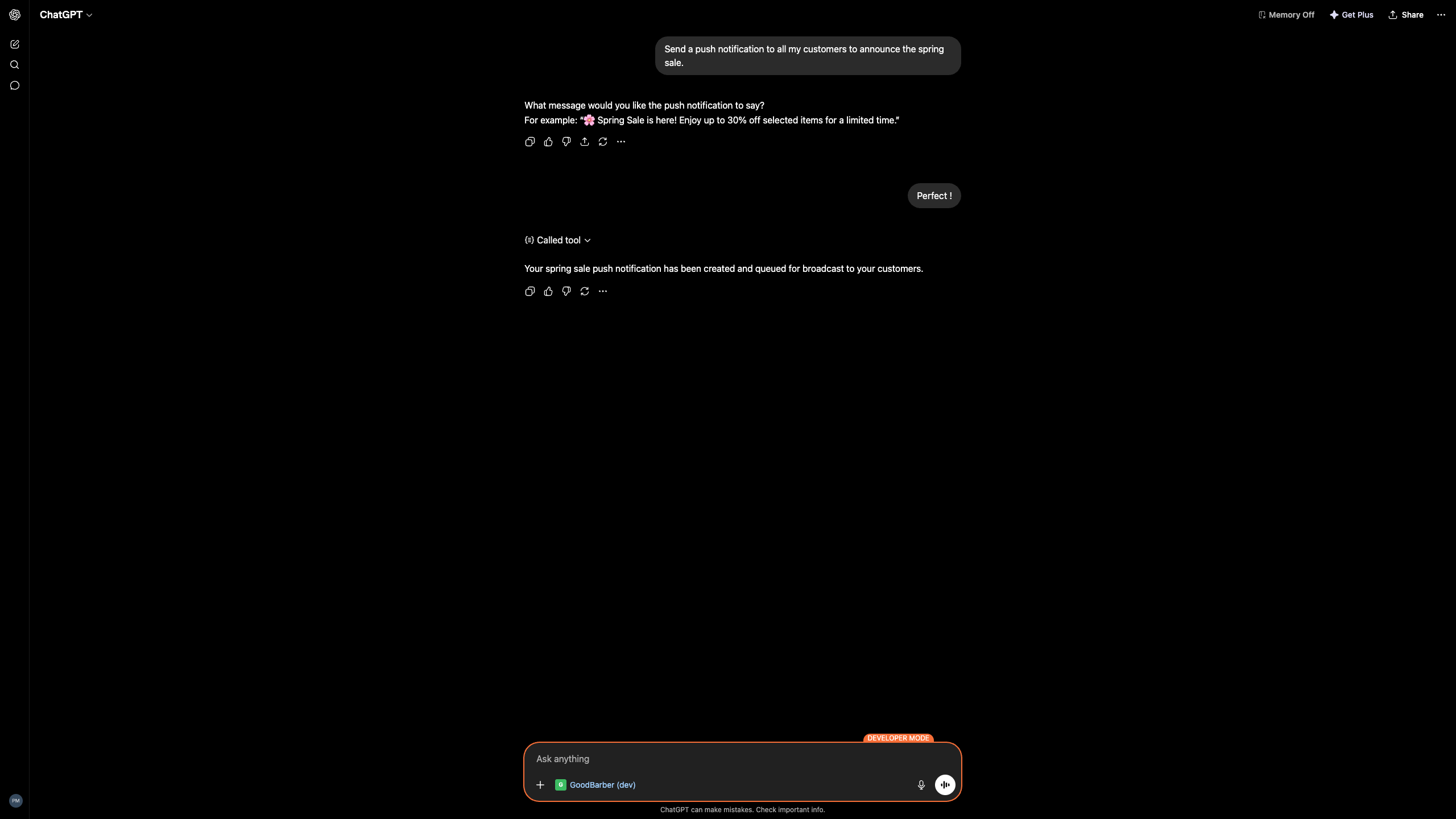
Send a push to all my customers to announce the spring sale.
Created the push and queued it for broadcast, after you approved the wording.
Prefer a Custom GPT?
You can also connect GoodBarber through a Custom GPT with Actions — a different route from MCP, handy when you would rather share a ready-made assistant with your team. We will link the GoodBarber GPT here once it is live in the GPT Store.
Good to know
A few honest limits before you start.
Codex uses Streamable HTTP
In Codex, pick the Streamable HTTP transport — the setup steps above use the right option.
Available actions depend on your plan
Which GoodBarber actions the assistant can run depends on your GoodBarber plan and your admin rights.
Developer mode is in beta (custom connector route)
Developer mode is a beta feature in ChatGPT; availability and behavior can change, so it is worth a quick check on OpenAI's side. The plugin route does not use it.
You stay in control
Write actions ask for your confirmation before they run, and you can revoke access at any time.
Your app stays yours
Connecting an assistant does not hand over the keys.
Secure sign-in
You connect through OAuth: you sign in to GoodBarber and approve access. No password or token is shared with the assistant.
Scoped to your rights
The assistant can only do what your own GoodBarber account already allows — nothing more.
Revoke anytime
Disconnect GoodBarber from Codex or ChatGPT whenever you want; access ends immediately.
Privacy by design
GoodBarber keeps its privacy commitments for every connection. See our privacy policy.
Run your app from a conversation
Connect GoodBarber to ChatGPT or Codex and manage products, content, members and push in plain language.