GBTC: Publish your app with easeDiscover GoodBarber Takes Care and simplify the app publication process for both the App Store and Google Play. Let us handle the technical details for you.Learn more about GBTC
Push notifications are undoubtedly a must have for effective communication with the users of your app.
A while ago, we already provided you with the possibility to send automatic push notifications , notifying your users of the publication of new content in a given section.
You’re now familiar with the fact that, at GoodBarber, we like to always give you more possibilities and make your life as easy as can be… We’ve therefore decided to put some hard work into a new version of that feature.
Let me introduce to you our brand new Scheduled Push Add-On!
Communication made easy
The exciting news with this new Add-On is the fact that it is now possible to create an unlimited number of rules for the sending of push notifications.
You wish to manage different types of messages and target specific user groups? Everything is possible!
THE CONTENT OF THE MESSAGE
For each rule, you will be asked to pick the section for which push notifications will be sent out every time something new is published.
You will also be able to add a prefix to your messages so that your users understand at a glance what the notification is about.
THE RECIPIENTS
You can choose to send your push notifications to all your users or, target a specific audience. Just like with the dispatch of manual push, you will be able to target your users according to the following criteria:
- Their usage of your app - The devices & OS versions they use - Geolocating - User groups (if you have activated the User Group Add-on and created Groups)
DISPATCH TIME
You can also choose at which moment your push notification will be sent out:
- Whenever - During business hours (you can define a time slot for each day of the week during which you wish for users to receive your notifications) - During a specific time lapse
PUSH SETTINGS
Of course, just like with manual push notifications, you can pick the sound that your users will hear when receiving your push notification, and activate or not the Apple badge to notify your iOS users that something new is waiting for them in their app.
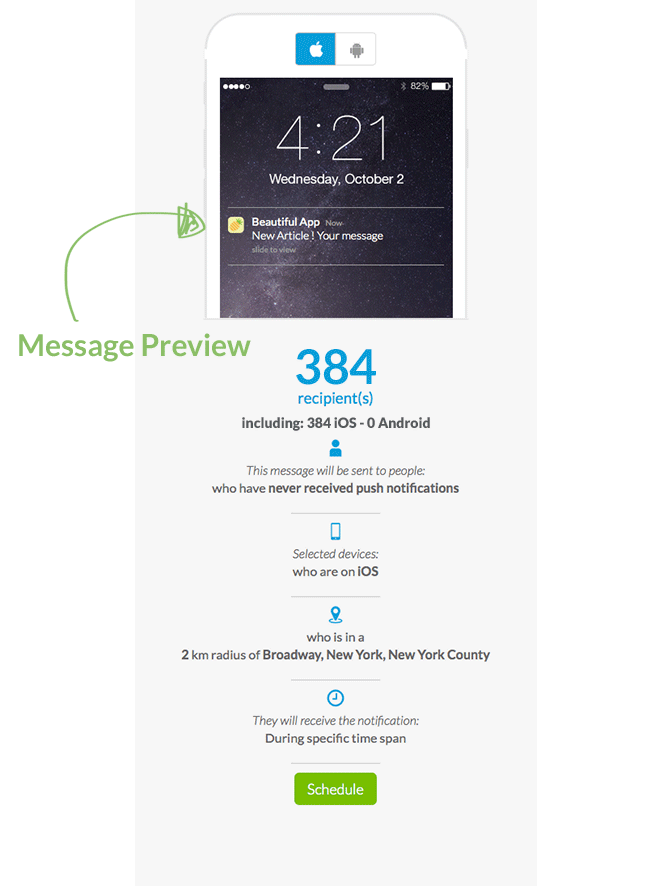
To make it even more simple for you, during the creation process of your message, a preview of the said message will appear on the right of your screen. You will be able to see what your message will look like, as well as a summary of all the parameters attached to it. Awesome, right?
Managing made simpler
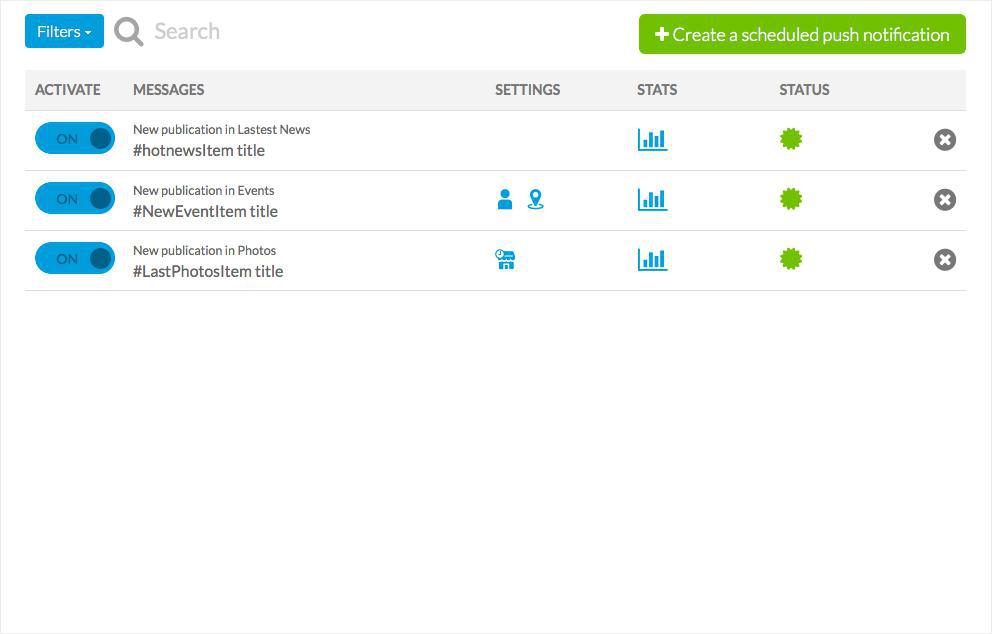
Still within the same menu, you will find the list of all the sending rules you have created, their status, as well as their parameters. The OFF/ON button will allow you to activate or deactivate messages at all times.
A good way to have an overall view of your communication ;)
Numbers, always numbers…
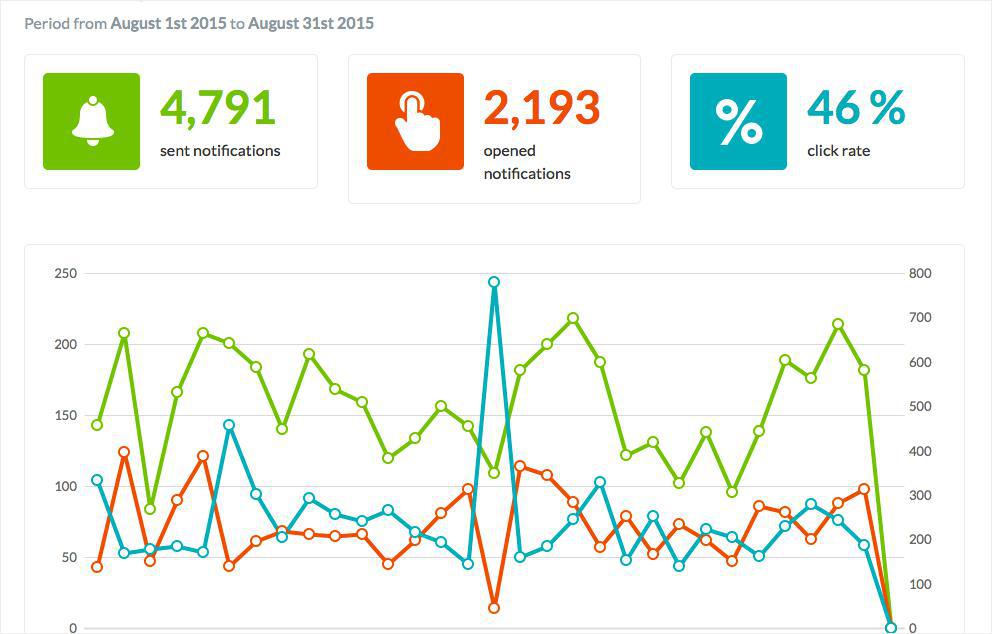
In order to be 100% efficient, your communication needs to be analyzed. The point is to measure the performance of your campaigns, identify your strong points and weaknesses, and of course, to take into account to improve upcoming ones ;)
That’s why we provide you with statistics which will allow you to know everything about the performance of your notifications.
How to activate the Add-On?
These features are available with the Full & Advanced plans. To enjoy them, simply head to the Add-Ons Menu > Catalogue > Notifications and activate the Scheduled Push Add-On.
Once the Add-On is activated, a brand new sub-menu will appear within the back office. You can find it in Users Menu > Push > Schedule.
For those of you who have already created a sending rule, don’t worry, we have automatically added this Add-On to your back office. You can simply create new rules if you like :)
Don’t wait anymore! Create your campaigns, and let GoodBarber work its magic ;)
Five ways lead to a fitness app for your business, and each is priced its own way: a flat plan, an add-on to gym software, per client, per subscriber or quoted. The table below compares what each one costs and the job it is built for.
 eCommerce
 Memberships
 Chatbot
 Online Courses
 Bookings
 Travel guide
 Events
 Content Creators
 Pickup & Delivery
 Newspaper
 Radio
Radio Schools
 Faith
Faith Organizations
 Restaurant
 Grocery
 Custom apps
 Employee Communication
 NO CODE APP BUILDER
 TECHNOLOGY
 WHY GOODBARBER?
 Design
 PRODUCT RESOURCES
 TOPICS
 MOBILE APPS RESELLERS
 DISCOVER